Enable login in WordPress
1. Create a Kakao App
To be able to log in via Kakao you must create a Kakao app first.
- Navigate here.
- Log in with your Kakao credentials if you are not logged in.
- Click on the blue “Create app” button!
- Select an image for your App, fill in the “App Name” and “Company name” fields, select a “Category“.
- ( Optional ) Into the “App primary domain” field add the URL of your website. You can find a suggestion for this at the backend of Nextend Social Login.
Note: localhost URLs are not allowed, so in that case leave this field empty. - then comply with the “Operating Policy“, finally click on the “Save” button!
- Once you have a project, click on it, and you will enter the Dashboard.
- Below the “App Settings” menu on the left, open the “App” menu point, and click on “Platform Key“.
- Find the “REST API key” key section and click on the “Add REST API key” button.
- Enter a “Key name“.
- Into the “Kakao Login Redirect URI” field enter the URL that Nextend Social Login suggests at the backend.
- Press the “Save” button.
- A new box with the name of your REST API key will appear below the “REST API key” section. Click on the 3 dots, and choose “Set as primary key” then press the “Confirm” button.
- Below the “Product Settings” menu on the left, open the “Kakao Login” menu point, and click on “General“.
- Under the “Usage settings” section set the “State” ON-OFF switch to ON. A popup will appear, where you should click the “Activate” button.
- Below the “Product Settings” menu on the left, open the “Kakao Login” menu point, and click on “Constent Items“.
- Under the “Personal information” section, click on the “Set” button for the Scopes with the “ID” and for any other scope that you will need.
“profile_nickname” – Purpose: Used for the username generation and for setting the first name and last name.
“profile_image” – Purpose: This image will be used as the avatar of the account.
“account_email” (optional – requires business verification) – Purpose: Accounts will be registered or linked based on this email address.
In the popup you should set the “Consent Type” to either “Optional consent” or “Requited consent” depending on your needs.
Finally, fill the “Purpose of consent” field. It is important to clearly state what you want to use the consent item for.
WARNING: Certain scopes, e.g. “Email“, or e.g. “Birth year“, “Phone number” (used when you turn on the corresponding setting in our Sync data tab), will require you to switch to Biz App and register business information, or if you are a single developer, verify your identity in order to be able to request consent to these items.
In the official documentation, you can learn more about this process. - Below the “App Settings” menu on the left, open the “App” menu point, and click on “Platform Key“.
- Open the REST API key you created by clicking on the box with the name you entered for it.
- Here you will find the “REST API key” and “Client Secret” > “Kakao Login” > “Code” values. You will need these within the plugin.
2. App setup
Once your Kakao app is ready you’ll need to copy and paste the “REST API Key” and “Client Secret > Kakao Login > Code” values to the Kakao provider’s Settings tab.
3. Verifying
Once your REST API Key and Client Secret Code have been added you need to verify the setup first. This verification helps you identify possible problems with the app.
Settings
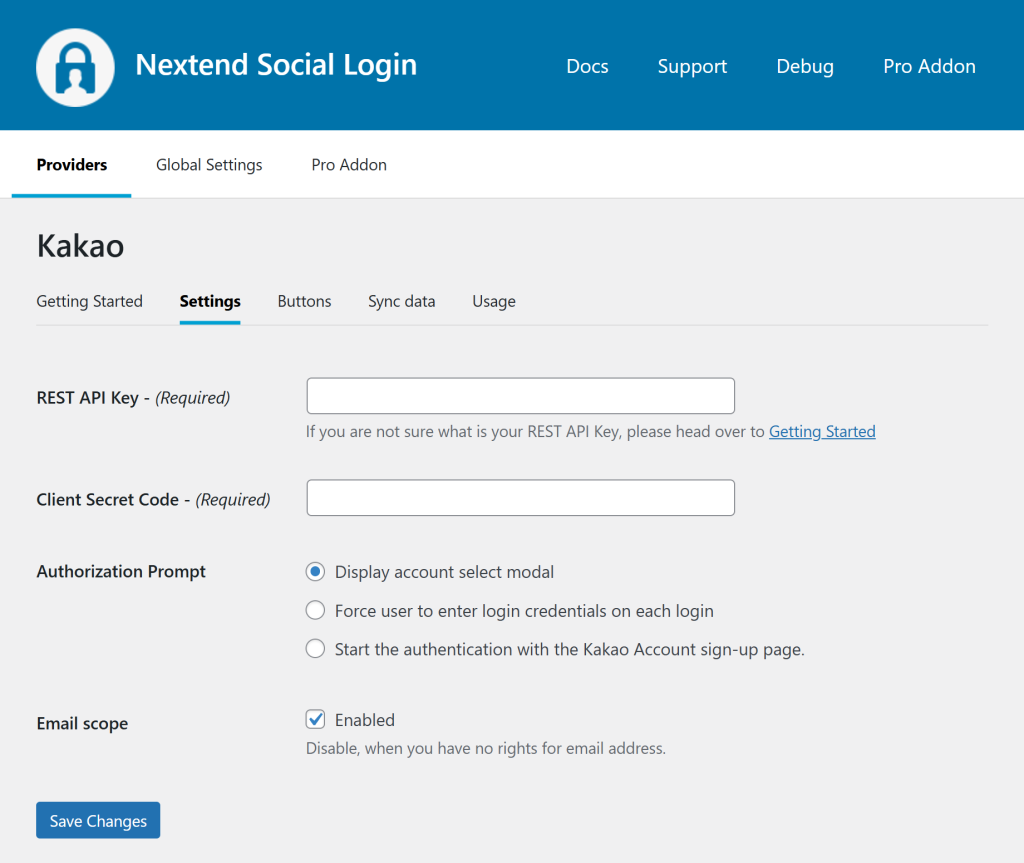
REST API Key
The REST API Key of your Kakao app. You can find it when you edit the “REST API key”.
Client Secret Code
The Client Secret > Kakao Login > Code value of your Kakao app. You can find it when you edit the “REST API key”.
Authorization Prompt
Authentication mode for Kakao.
- Display account select modal
If the user has a login session, they will be logged in automatically, or if there are multiple login sessions, then the Account select modal will be shown. - Force user to enter login credentials on each login
Every time the user wants to login with social login, they will be prompted to enter their credentials, even if they have a login session. - Start the authentication with the Kakao Account sign-up page.
Show the sign-up page instead of the login.
Email scope
To be able to request the email of the user, you’ll need to switch your App to Bizz mode, and that needs to be approved by Kakao.
By disabling this option, the email won’t be requested, so users will be able to login with Kakao even when the App is not approved yet.
Other settings
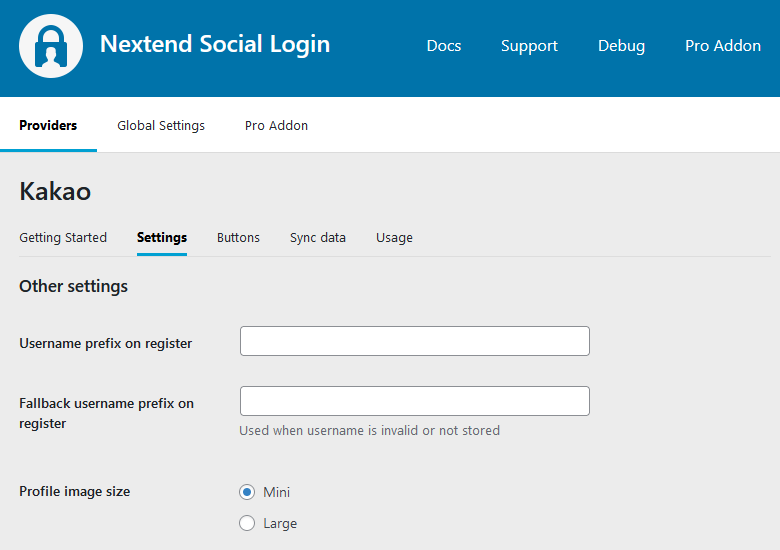
Username prefix on register
Whenever a new user registers with their Kakao account they can get a custom prefix so you can easily identify them.
Fallback username prefix on register
Whenever a new user registers with their Kakao account and we can not generate a valid username from the first name or last name, a random username will be generated. With this option they can get a custom prefix so you can easily identify them.
Profile image size
The avatar will be stored with the selected size.
Sync data
By default Nextend Social Login stores the first name, last name, email, avatar url and access token if it is possible, however some additional information can also be retrieved and stored.
When an option is checked, that field will be stored in a meta key with the specified name.
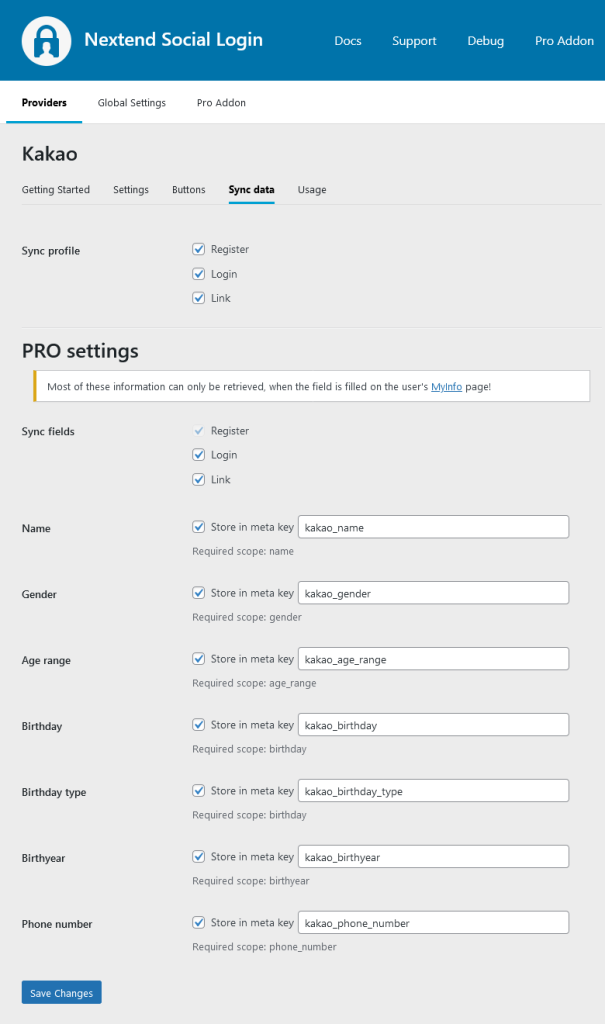
- Sync fields: Determine when the synchronization shall happen. Whenever a user registers, logs in, or links an existing WordPress account with a provider, their data will be retrieved and stored.
Design Guidelines
According to the Kakao Design Guidelines, the button needs to comply with the requirements. Our design matches this requirement. Avoid using custom designs, as that can get your Kakao login disabled.
OAuth redirect URL changes
If the OAuth endpoint of the provider changes for any reason, such as:
- you change the URL of /wp-login.php
- you set up the OAuth redirect URI proxy page setting
- or the website URL itself changes ( e.g.: domain change )
then you must whitelist the new OAuth endpoint in the app you configured for Nextend Social Login. Below you can find a guide that helps you update it to the new one:
- Navigate to https://developers.kakao.com/console/app
- Log in with your Kakao credentials if you are not logged in.
- Click on the name of your Kakao App.
- Below the “App Settings” menu on the left, open the “App” menu point, and click on “Platform Key“.
- Find the “REST API key” key section and click on the box with the REST API key value that Nextend Social Login suggests at the backend.
- Into the “Kakao Login Redirect URI” field enter the URL that Nextend Social Login suggests at the backend.
Common error messages
Admin Settings Issue
- Admin Settings Issue (KOE006): You are either missing or don’t have a correct Redirect URI set in your App. In this case, review step 12 in the Kakao Getting Started Guide in Nextend Social Login, and use the URL we suggest.
- Admin Settings Issue (KOE004): You do not have the Kakao Login enabled. Navigate to “Kakao Login” in the “Product Settings” menu, and set the “Kakao Login Activation” State to ON (step 11).
- Admin Settings Issue (KOE101): You have used the wrong REST API Key (Make sure to copy the value, don’t enter it by hand to avoid typos!).
Error: invalid_client: Bad client credentials
You have used the wrong Client Secret Code (Make sure to copy the value, don’t enter it by hand to avoid typos!).
Invalid request (KOE205)
This error is shown when you do not have permission to a scope e.g. the email.
Limitations
Don’t replace the Kakao App if you have users connected with Kakao
Whenever a person connects with Kakao login, an ID will be created, which is unique for the specific Kakao app that the login happened over. If the same person tries to login over another Kakao App, the person will receive another, completely different ID.
In Nextend Social Login, we use these IDs to recognize the WordPress account that the Kakao account was linked with. So if you replace the Kakao App, users with linked Kakao Accounts will no longer be able to login with the new App.
If you really need to replace the Kakao App, then users with linked Kakao accounts can only login with Kakao, if the person:
- logs in with the traditional username and password form or maybe with another provider that is also linked to the account
- unlinks the currently linked Kakao account
- and links the Kakao account again, using the new Kakao App
Each user can find the Link and Unlink buttons on the WordPress default profile page, e.g.:
- https://yoursite.com/wp-admin/profile.php
or you can display the Link and Unlink buttons using:
- the Nextend Social Login widget with Show link/unlink buttons enabled
- or the shortcode with the link and unlink parameters.